

Target Display Mode is one of the most amazing features that enable an iMac to be used as a secondary display to another Mac. This feature is very helpful when one is looking to increase the effective screen area within the working environment or when enjoying gaming which requires a larger display. In case you want to know how this feature can be easily utilized, read on.
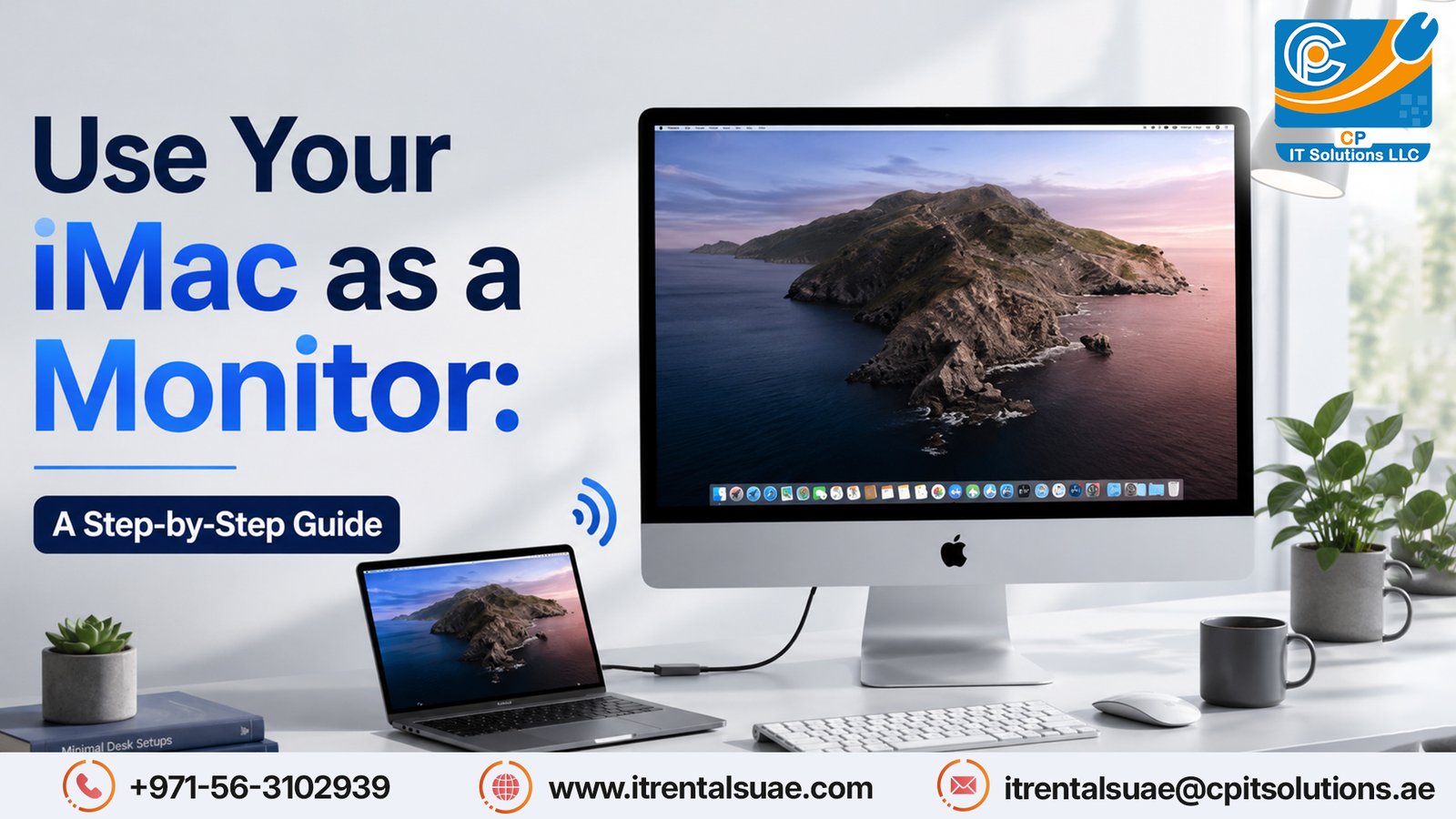
How Do I Set Up My iMac as a Monitor?
What You’ll Need
- Compatible iMac: This feature is applicable for iMac models that have been released since 2009 but it is only iMac models released in 2011 and above that can fully accommodate this feature.
- Connection Cable: Depending on the specific model of iMac as well as the other Mac in the possession of a user, there is likely to be a need for either a mini display port or a thunderbolt cable.
- Second Mac: This is the computer that you want your iMac to be connected
Step 1: Check Compatibility
The first step to take relates to confirming that you have an iMac and a Mac that have the requisite compatibility relating to use of target display mode. Such information can be easy if you check on the official apple website the technical details of your device.
Step 2: Connect the Cables
- Connect the cable: connect one end of a mini display port or thunderbolt cable to your iMac and connect the second end to the other Mac.
Step 3: Enter Target Display Mode
- Command + F2 can be used on your It will activate Target Display Mode TDM and will automatically turn the iMac screen into a display for the other Mac.
- If this does not work, please use the Command + fn + F2 combination or see if your keyboard has a different function lock setting.
Step 4: Adjust Settings
Using the second Mac within the target display mode means that the display setup for the various monitors can be modified. Under the menu System Preferences click on Displays to arrange the screens, change resolution or set preferences.
Step 5: Exit Target Display Mode
In case one wants to use the iMac as a normal computer, without using the TDM, simply pressing the Command + F2 will toggle that. You can also simply unplug the cable and undo the target display mode on your iMac.
Conclusion
An iMac can easily be used as a monitor which is useful when working or while playing games that require a larger screen. The entire procedure on how to use the iMac as a monitor is easily outlined, which will assist in giving the new iMac a new purpose and in increasing its efficiency.
Easiest way to boost your productivity and expand the iMac screen is by using it as an additional monitor. If you’re looking for an iMac rentals Dubai to get started, consider CP IT Solutions LLC for flexible options.
Visit www.itrentalsuae.com or call +971-56-3102939 for more information!